
Click Create at the top of the Tasks page (or the dashed Create Task tile under My Tasks) to open the Task form. Only a title is required — everything else is optional, so you can jot a Task down quickly and fill in the rest later.
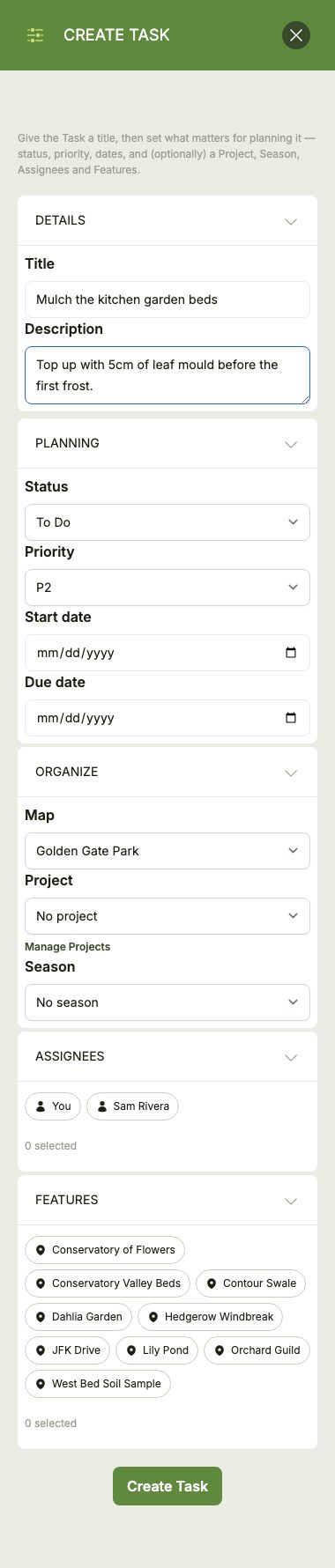
The form is split into a few collapsible groups:
- Details: a title and an optional description. Use the description for the how and the why — materials needed, the approach you plan to take, or notes for whoever picks it up.
- Planning: the Task's status, an optional priority from P1 (highest) to P5, and optional start and due dates. The due date can't come before the start date.
- Organize: which Map the Task belongs to, and optionally a Project and Season. Projects can be created right from the form with Manage Projects.
- Assignees: anyone on the Map's Team — the owner or a collaborator. Select as many people as you need.
- Features: the Map Features the work is about, such as the bed to mulch, the swale to dig or the tree to prune.
Linking Features
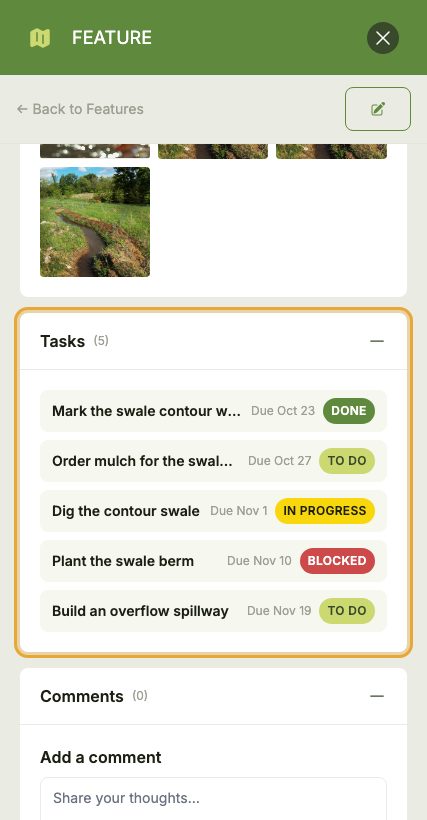
Linking a Task to one or more Features ties the work to a real place on your property. The Task appears on each linked Feature, so opening a Feature shows the work done (or still to do) there, and the Task can show photos taken of that Feature.
Editing Tasks
Click the edit button on a Task card, or Edit on the Task's own page, to change it. Everything except the Task's Map can be edited — once created, a Task stays on the Map it was created on.