
Designing your property is only the beginning — then comes the work of building and maintaining it. The Tasks page tracks that work: what needs doing, where on your land, who's doing it and when.
Unlike a general to-do app, every Task lives on a Map. It can be linked to the Features it's about and assigned to the people on your Team, building up a record of what was done on your property, where and when.
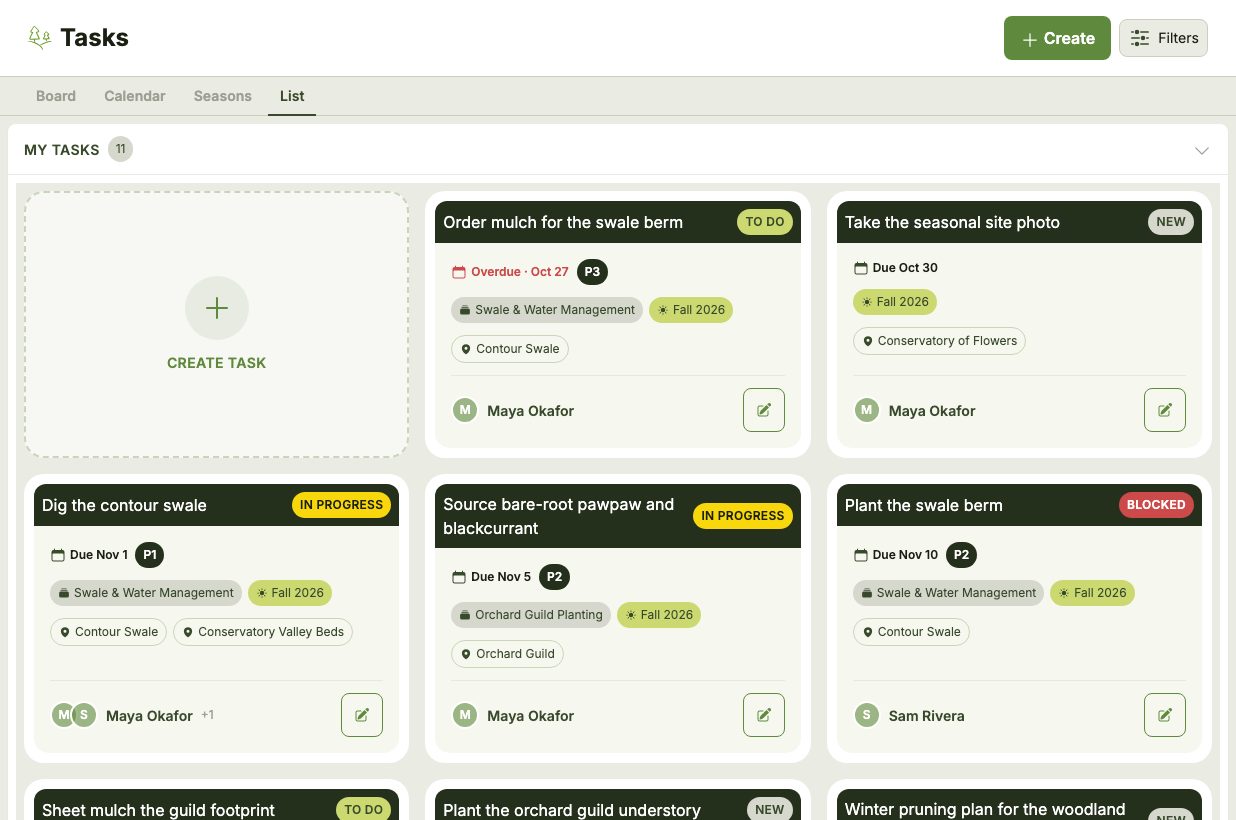
My Tasks and On This Map
The List view is split into two sections:
- My Tasks: the Tasks you've created or been assigned. These follow you across Maps, so if you work on more than one property you'll see all of your work here, with each card showing which Map it's on.
- On This Map: everyone else's Tasks on the Map you're currently viewing.
Task Cards
Each Task card shows the essentials at a glance:
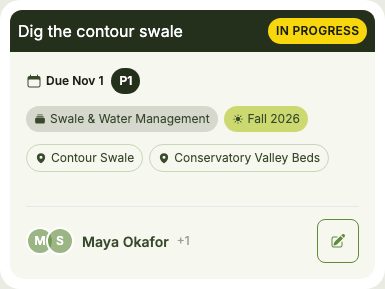
- Status: where the Task stands — New, To Do, In Progress, Done or Blocked.
- Due date: when the Task should be finished. Open Tasks past their due date are marked Overdue in red.
- Priority: from P1 (highest) to P5, for Tasks that have one.
- Project and Season: how the Task is organized.
- Features: the parts of your Map the Task is about.
- Assignees: who's responsible for the work.
Beyond the List, Tasks can also be viewed as a status Board, a monthly Calendar or grouped by Season — see Task Views. To get started, learn how to create a Task.
Important
Anyone can browse the Tasks on a Map they can see, including the demo Map. Creating and editing Tasks requires a premium Map and is limited to the Map's Team.