
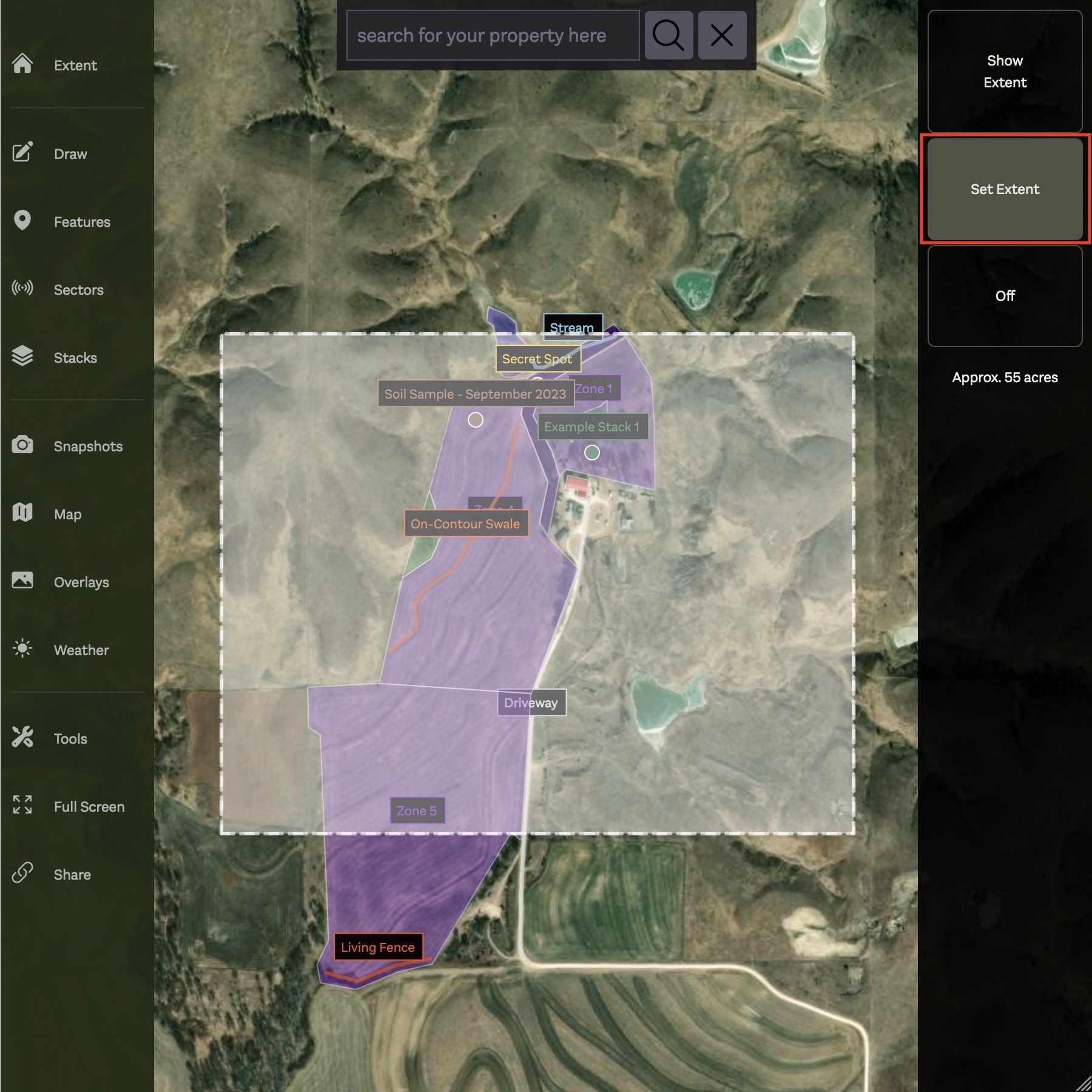
Once you have created your Map you will want to set its extent. Creating an extent sets the general location of your property for quick navigation via the Center button at the top of the map menu. It does not need to be precise and may take a couple attempts before getting it right based on the shape and size of your property.
Open Extent from the main menu to start editing. Drag the rectangle so it covers your property, then click Apply to save it — or Cancel to discard your changes. You can adjust the extent again at any time.
Once your extent is set, clicking the Center button at the top of the map menu will automatically move the map back to your property, making it easy to re-orient yourself at any time.